
Download Pokemon Infinite Fusion for Windows All Sprites Preloaded (Updated 2026)
Download the full game with all the Sprites, without needing an installer. Everything is pre-installed, including custom sprites, essential configurations, and all required files.
Pokemon Infinite Fusion Windows
Pokemon Infinite Fusion Full Game 6.7.2
3.0 GB
Pokemon Infinite Fusion ROM – Light Weight Installer
Using the Lightweight Installer, you can easily install or update Pokémon Infinite Fusion with support for custom sprite repositories and other options. Click the download button below and follow our step-by-step guide to set up the full game through the installer.
Pokemon Infinite Fusion 6.7.2 (Light weight installer)
2.2 GB
Pokemon Infinite Fusion Revamped Version
Pokemon Infinite Fusion Revamped is a fan-made upgrade of the original game where you can mix two Pokémon to create new ones. It has cooler graphics, smarter battles, and fun features like shiny Pokémon with different colors.
Infinite Fusion Revamped Version
1.7 GB
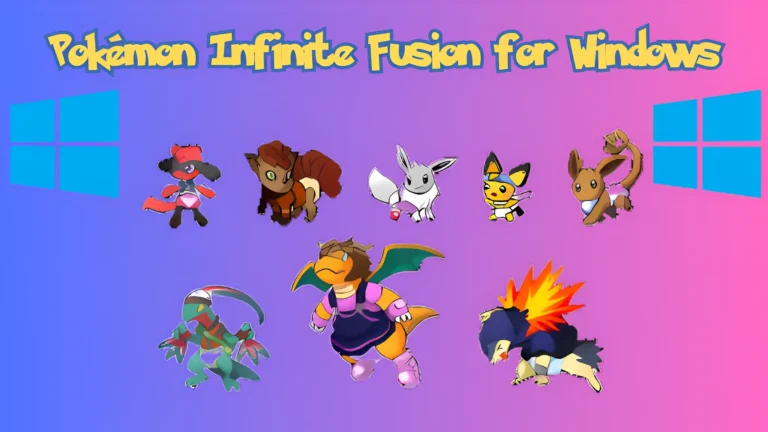
Get Pokemon Infinite Fusion on Windows: All Sprites Preloaded
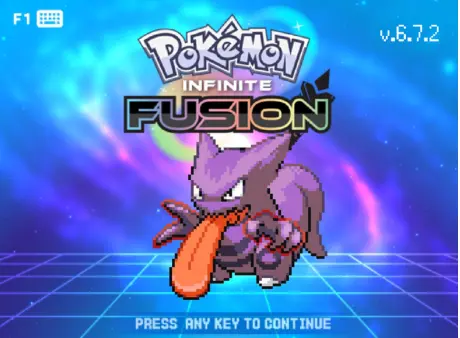
| Game Info | Information |
| Version Compatibility | Windows, macOS, Android (via JoiPlay Emulator) |
| Initial Release Year | 2015 |
| Last Updated | Today |
| Version | 6.7.2 |
| Based On | Pokémon FireRed |
| App Type | Fan-Made RPG Game |
| Unique Features | Fusion mechanics, custom sprites, updated storylines, and over 220,000 Pokemon fusion options. |
| Language | English |
| Supported Emulators | JoiPlay (Android), VisualBoy Advance (Windows/macOS) |
| File Format | Executable (.exe) for Windows, (.apk) for JoiPlay integration |
Pokemon Infinite Fusion is a fan-made game designed for Windows. It delivers optimal performance on Pc. Version 6.5.1 is now available for Windows, including new Pokemon additions
Step by Step Guide to Download and Install Pokemon Infinite Fusion on Windows
Here are steps to download and install Pokémon Infinite Fusion on Windows with the latest update and sprite pack.
Extract the Game Files
Download the latest version of Pokemon Infinite Fusion from the above link.
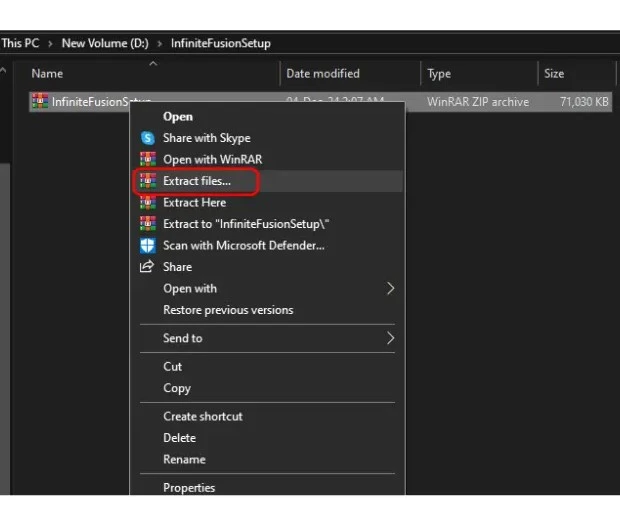
To extract the game files, use a file extraction tool like WinRAR. Right-click on the downloaded file and choose “Extract files.”
Launch the game files
Now Choose the location where you want to save the game files.
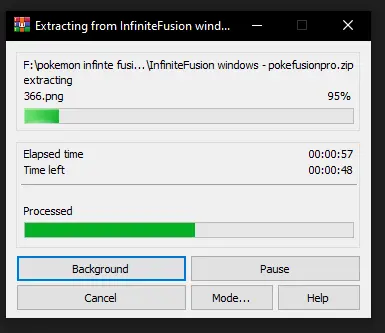
Extracting the files will take about 5 to 10 minutes. This process may take some time because the game has large files up to 5 GB, like custom spirits, and includes many core files, such as tilesets, scripts, and audio, necessary to run the game.
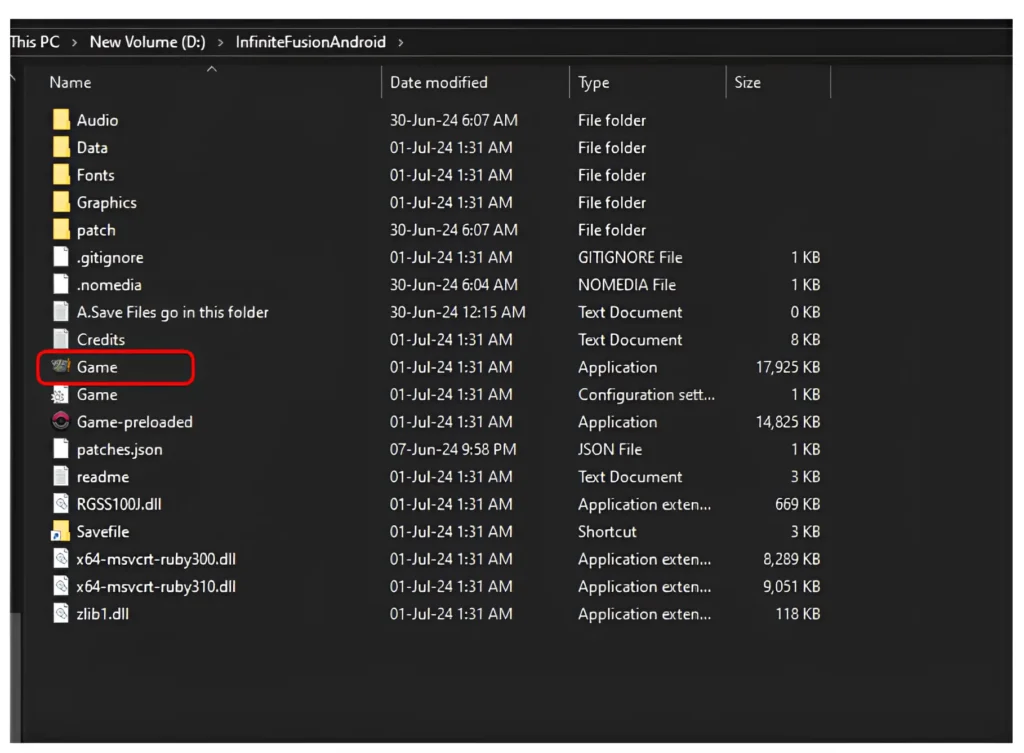
After that, you will see a new folder will be created with the game files. Click on game.exe icon to enjoy the game.
Turn off download sprites
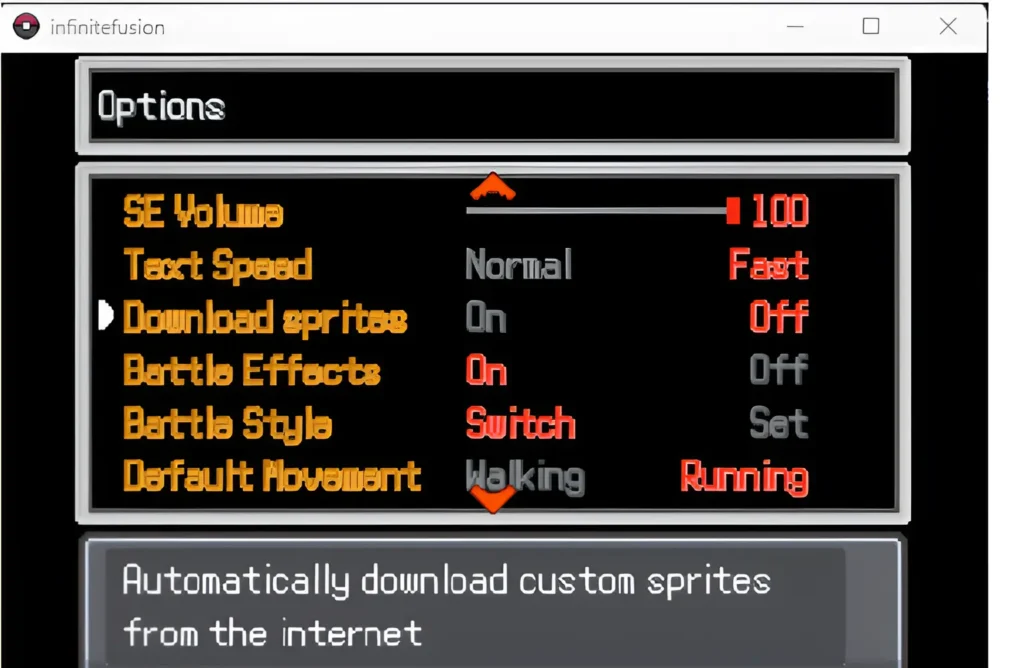
When downloading the game for Windows, it is important to turn off the “Download sprites” option in the settings menu. Turning this option on can slow down your gameplay and cause crashes. This happens because the game tries to download custom sprites from the internet automatically. These downloaded sprites can replace and overwrite existing ones, leading to compatibility issues and negatively impacting your gaming experience. Therefore, turn these off for smoother gameplay.
Steps to turn off download sprites
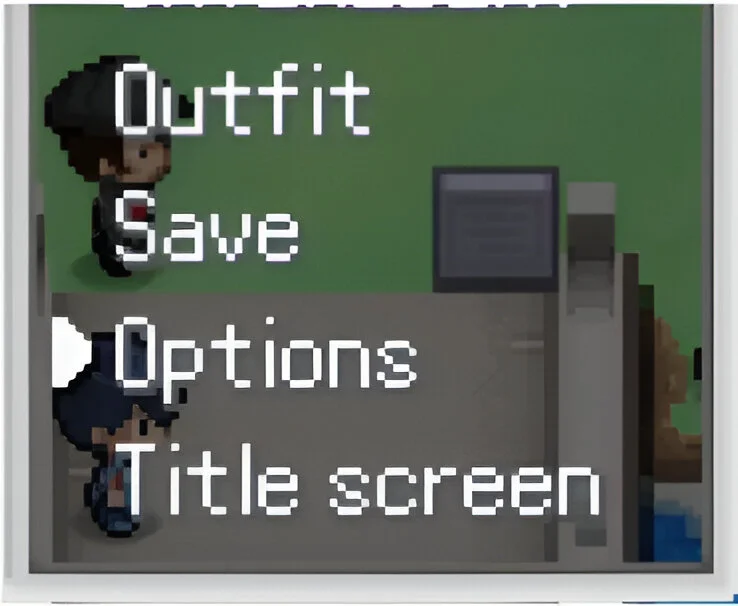
When you are in the game, press the ESC button. A new window will appear on the right side.
Choose the option in that window.
Now, Scroll down to Download sprites.
Use your arrow keys to turn it off.

Save your settings, and then restart your game.
How to Update and Install Pokemon Infinite Fusion ROM on Windows(Light weight installer)
Follow these simple steps to update the game on Windows.
Download the Lightweight Installer
Download the LightWeight installer from the provided link.
After the download is complete, you will need a file extraction tool, such as Winrar, to extract the files.
Extract the Installer Files
Now Right click on the downloaded file and select Extract files.
Select the folder where you want to save the Infinite Fusion Installer. It will take some time to extract the files.
Replace and Update Game Files
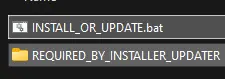
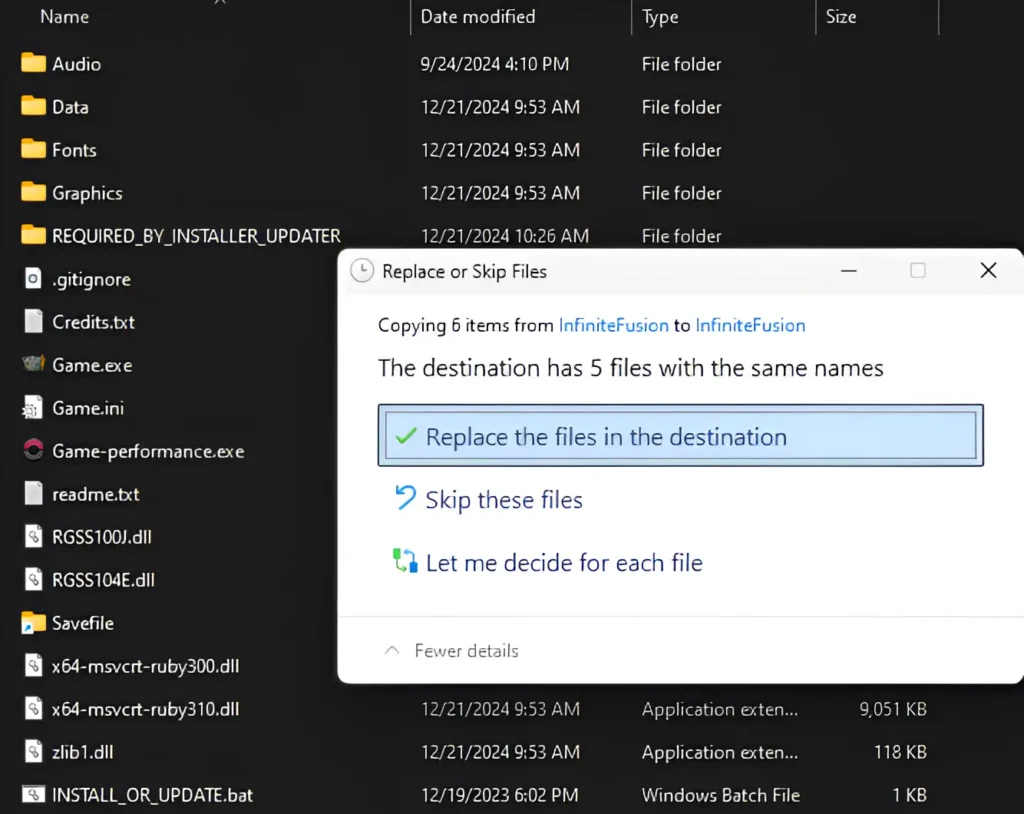
After you extract the files, copy these two files. If you haven’t downloaded the game, download it from the link provided. Then, move these two files to your original game folder. When prompted, replace the existing game files. Now, you can use the file named INSTALL_OR_UPDATE to update your game to the latest version.
The Pokemon Infinite Fusion Lightweight Installer updates all the newest files required for the game to run perfectly, including fixes, improvements, and new content, without complete reinstallation.
How to Install and Play Pokémon Infinite Fusion directly using the installer(Megaman)
Download the ZIP File
Download the ZIP file named “Pokemon Infinite Fusion Installer” by Megaman using the link above.
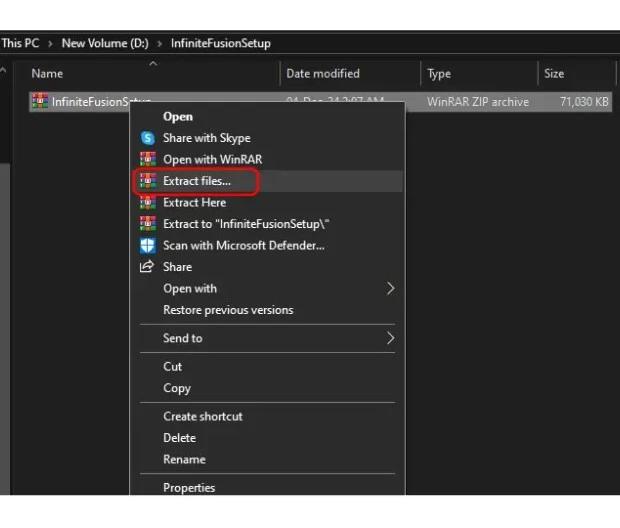
After the download is complete, locate the .zip file in your Downloads folder. Right-click on it, select ‘Extract Files,’ and choose the destination folder where you’d like to save the extracted files.
Launch the InfiniteFusionSetup File
After extraction, click on InfinteFusionSetup.
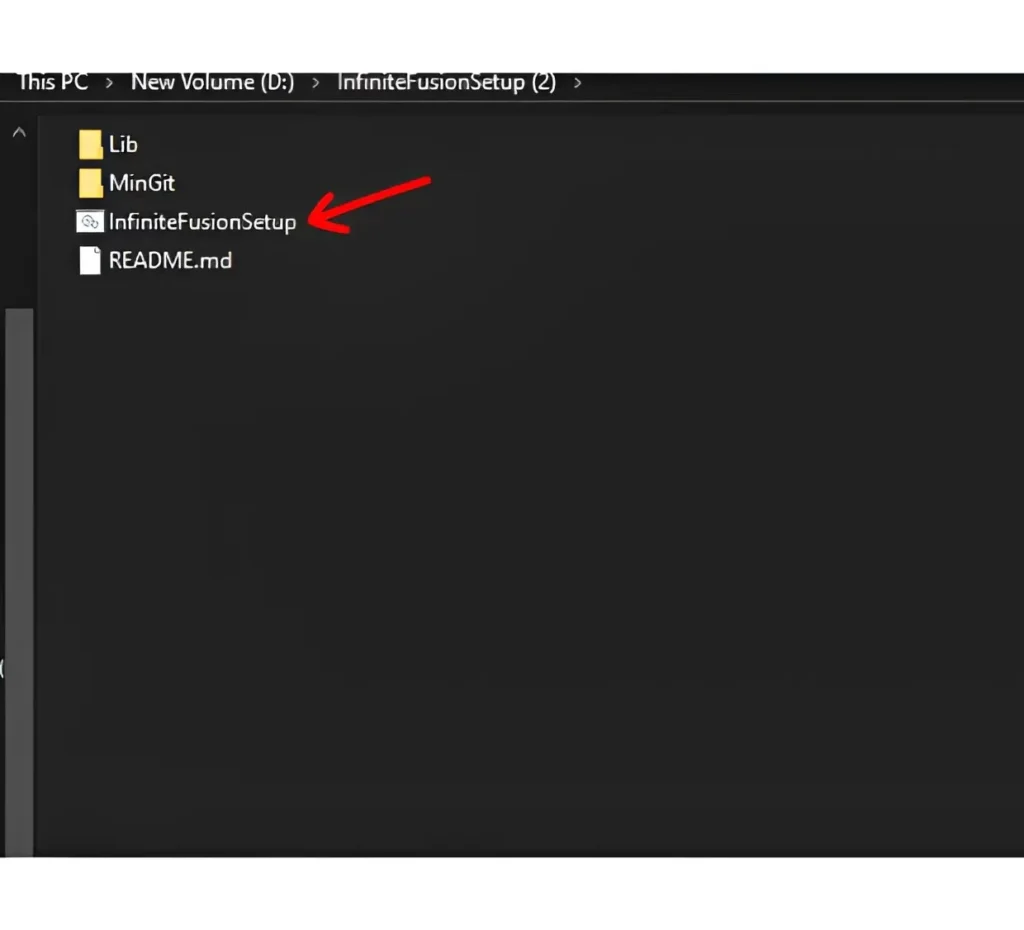
A command prompt window will open. Press any key to continue.
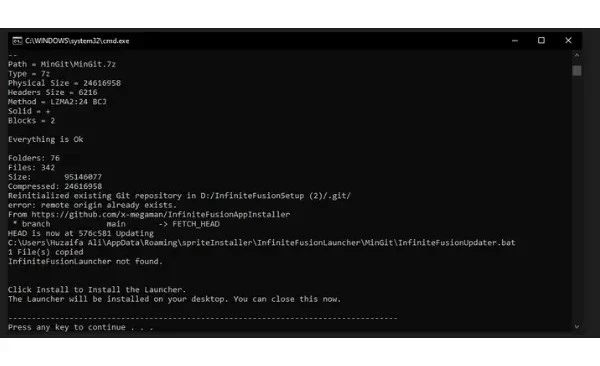
Now The installation process will begin and may take some time.
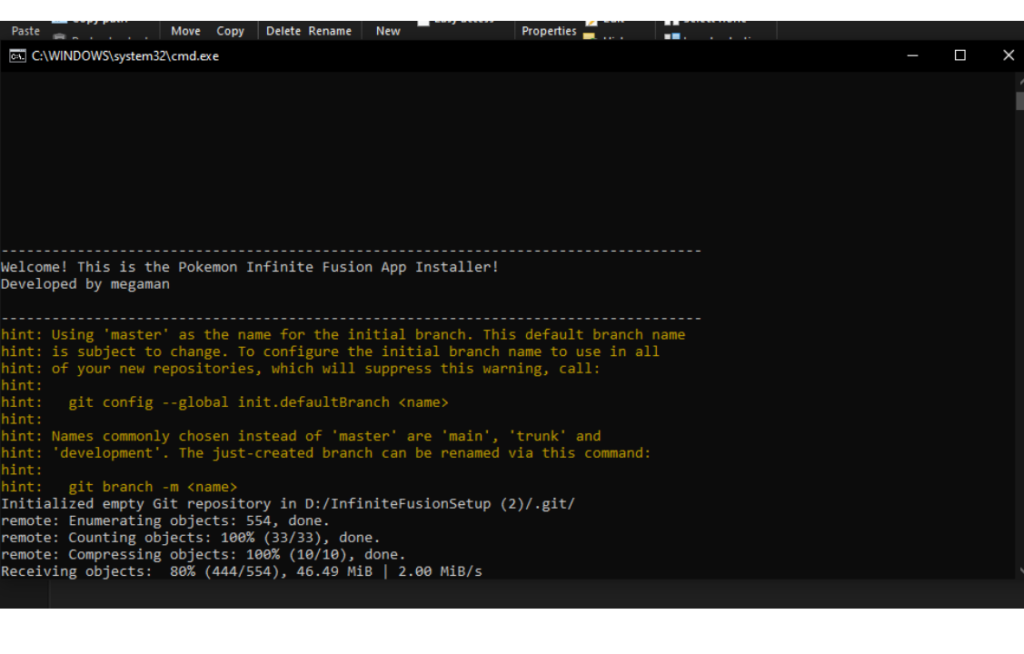
Start the Installation Process
Once all files are loaded, a new window will open. Click “Install,” and the installation will begin.
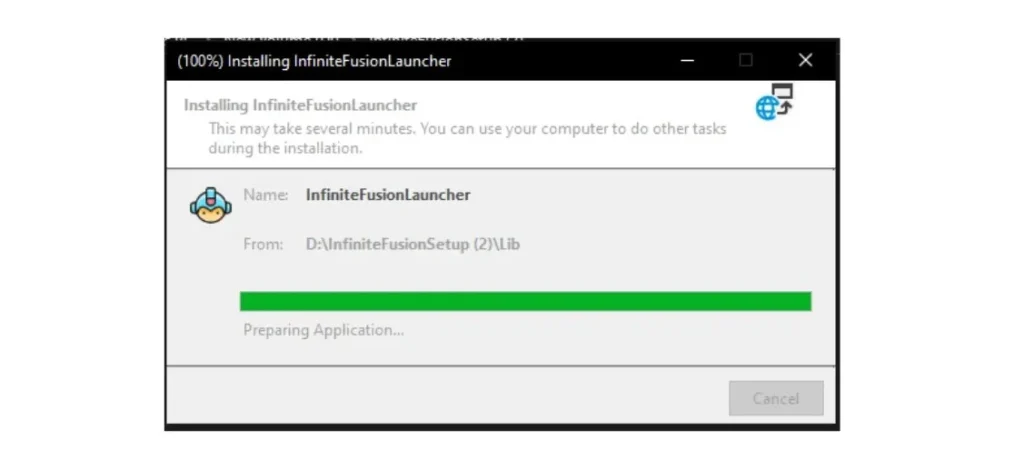
After installation, a new window will be opened, and an icon will be created on your desktop for easy access.

How to open the game directly through installer
If you have already downloaded the game and saved it in your directory, here is a complete guide to opening it directly using the installer.
Setup the Game files
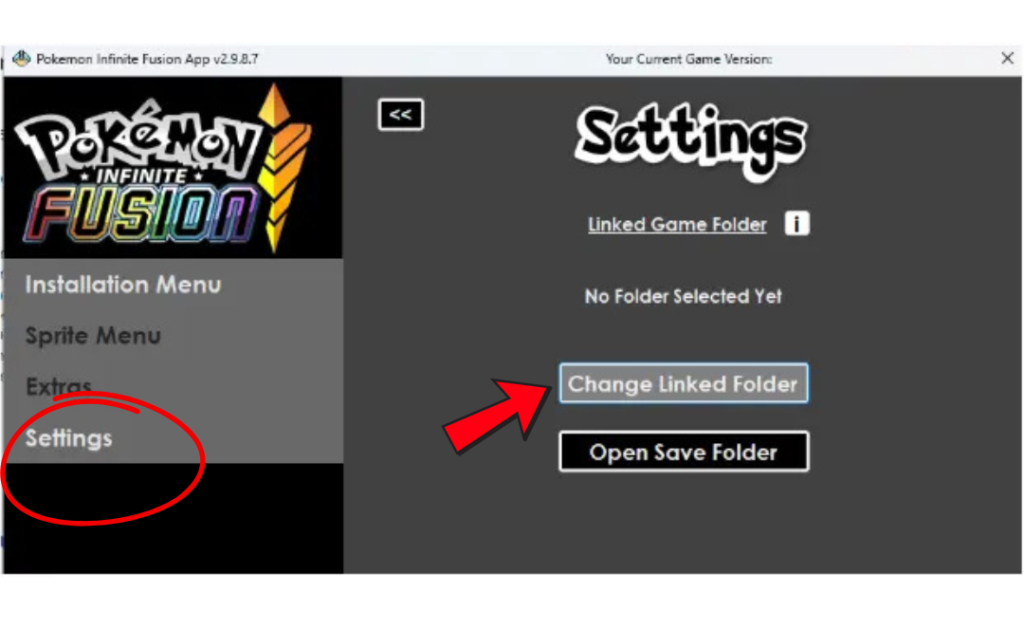
Make sure you have downloaded the game preloaded the ZIP file and installed the game. Then click on “Settings.” Select “Change Linked Folder.”
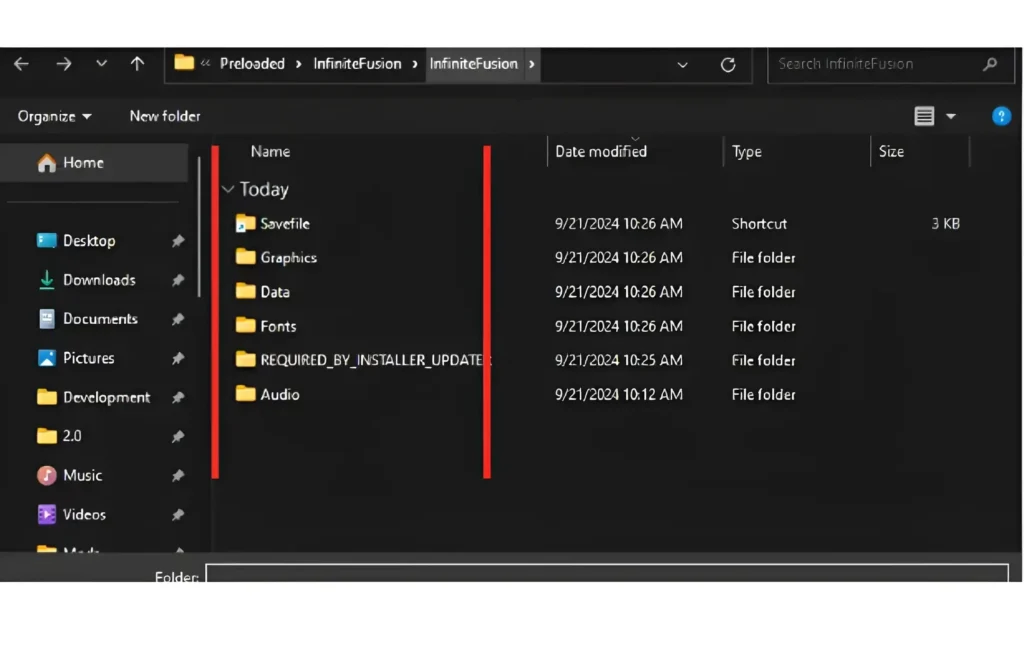
Choose the folder where your game files are located. Make sure the folder has subfolders named Audio, Data, and Fonts.
After selecting the folder, now your install button will automatically be changed into a play button.
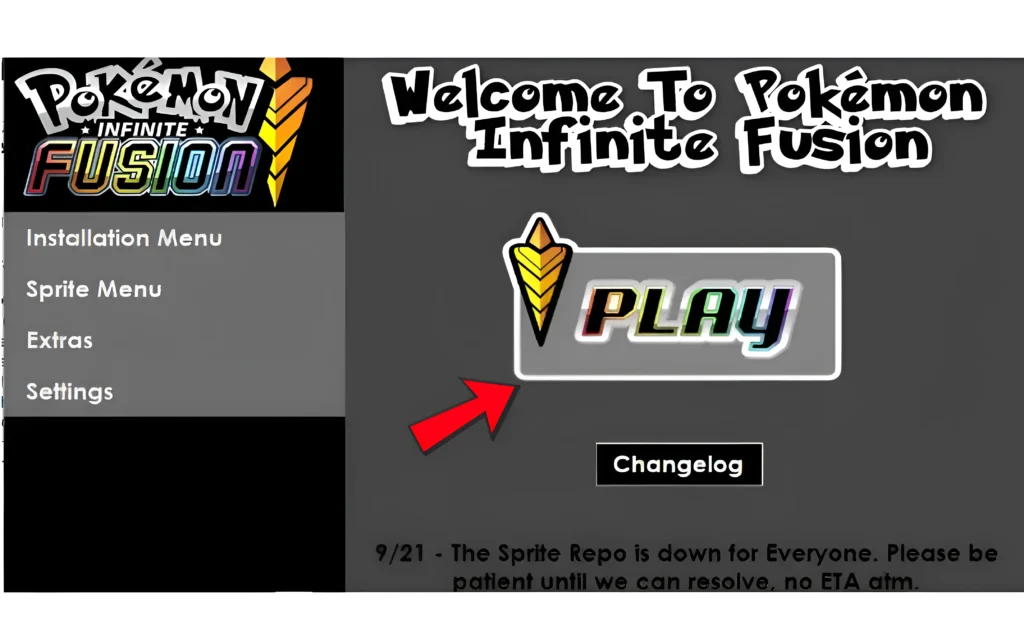
You can now use this button to play the game.
If you don’t have the game and want it to download automatically through the installer, click on the installation menu and then click on the “Install” button to start a fresh installation.
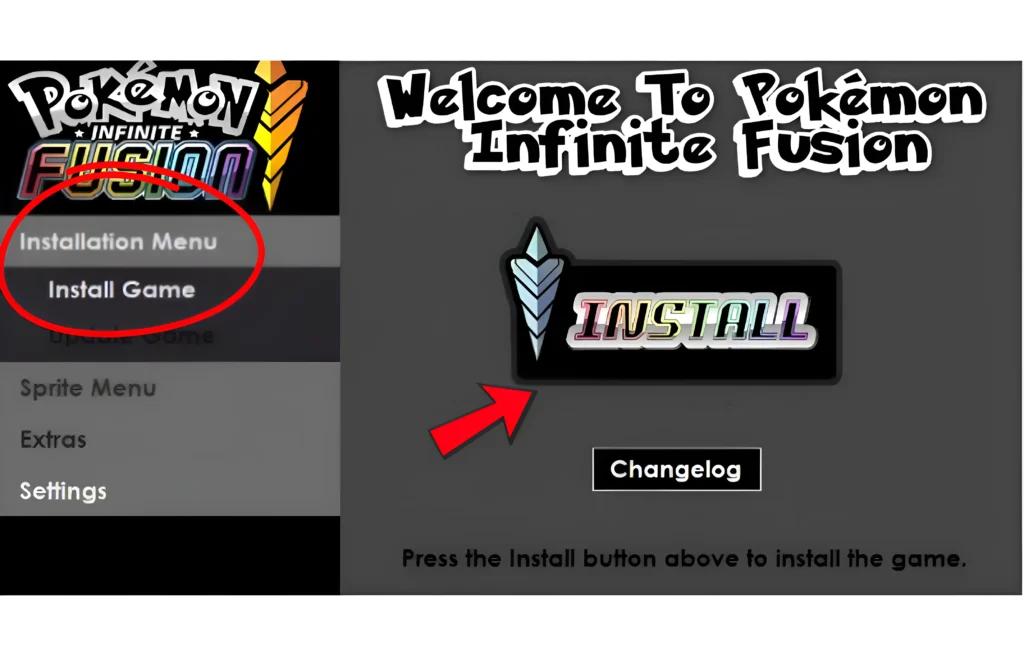
Start a Fresh Installation Using the Installer
After you click the install button, select the location where you want to download your game files, and then click on the browse folder option.
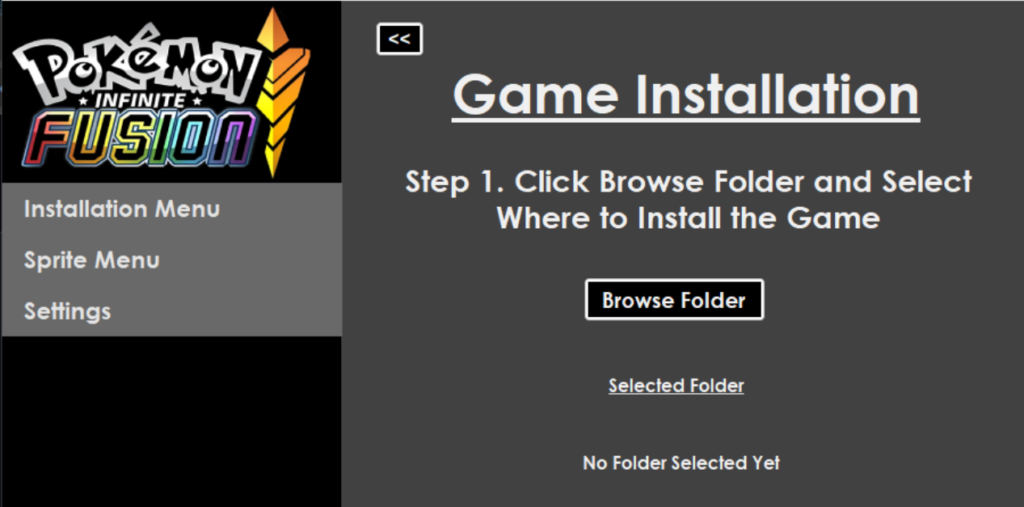
After selecting the folder, you will see an install button. Click on that.
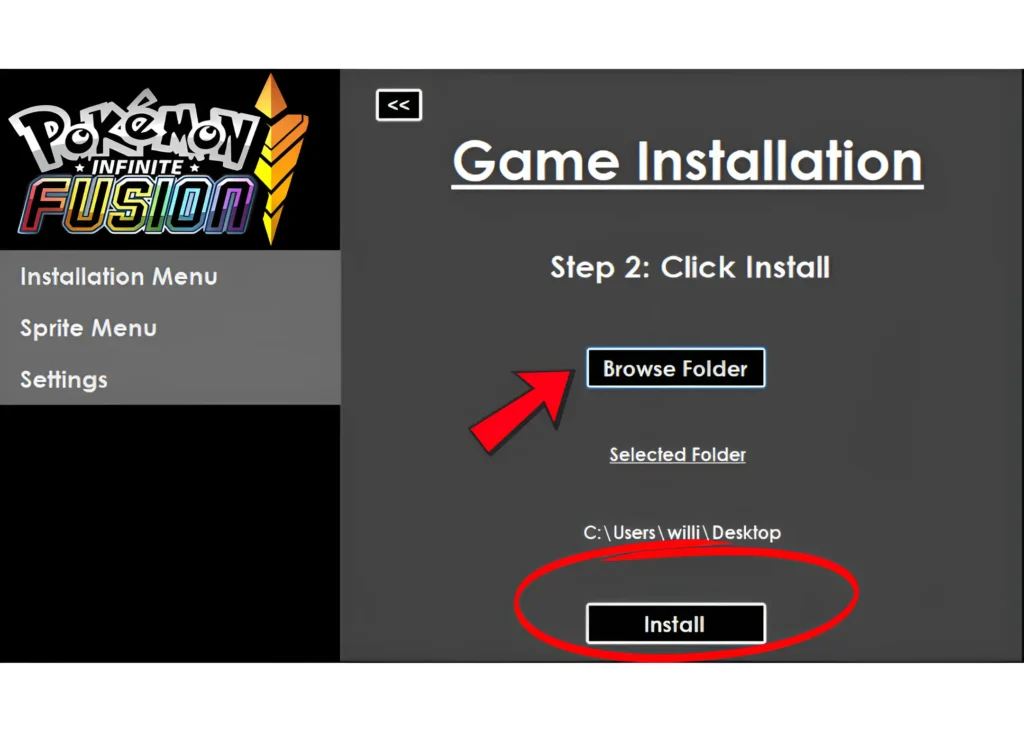
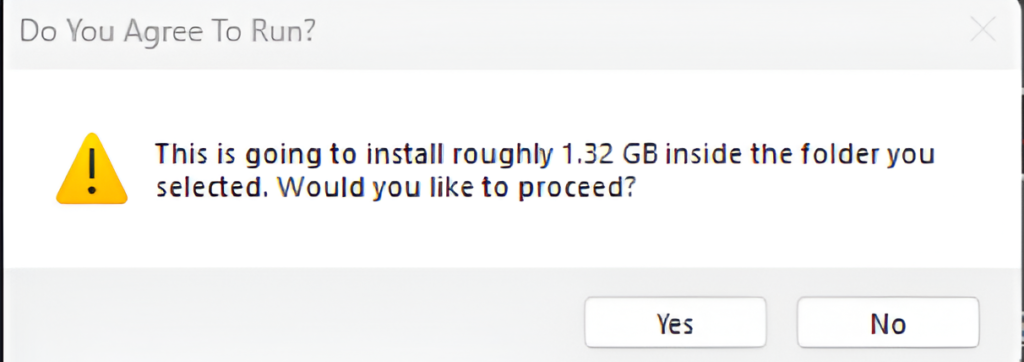
Ensure Sufficient Disk Space for Installation
Now, it will ask for space to download game files. Click yes; if not, delete the unusual files from your PC. The game will use almost 5 GB on your disk.
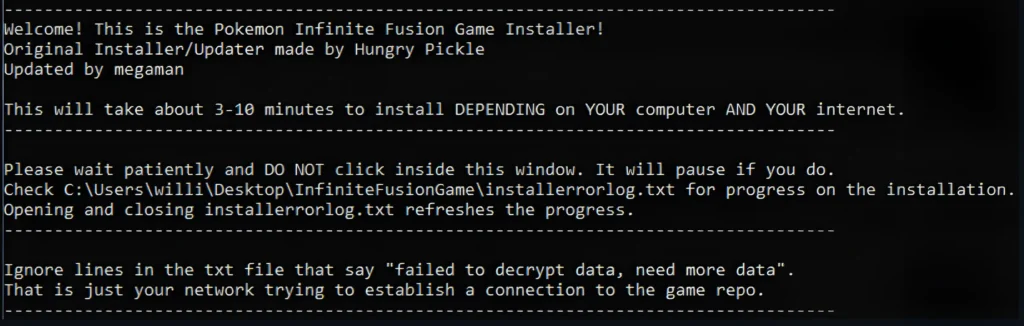
The same command prompt window will be open of a lightweight installer. Now it will start automatically start downloading the game files.
Once the installation is complete, A new window will be opened, indicating that Spirits are automatically integrated into your game.
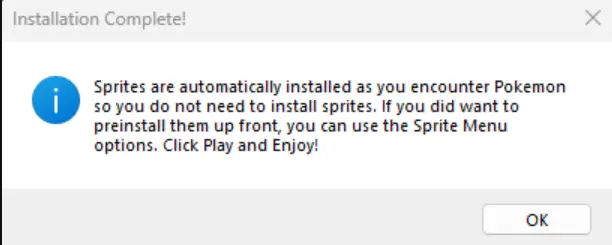
Now click on play button to enjoy the game.
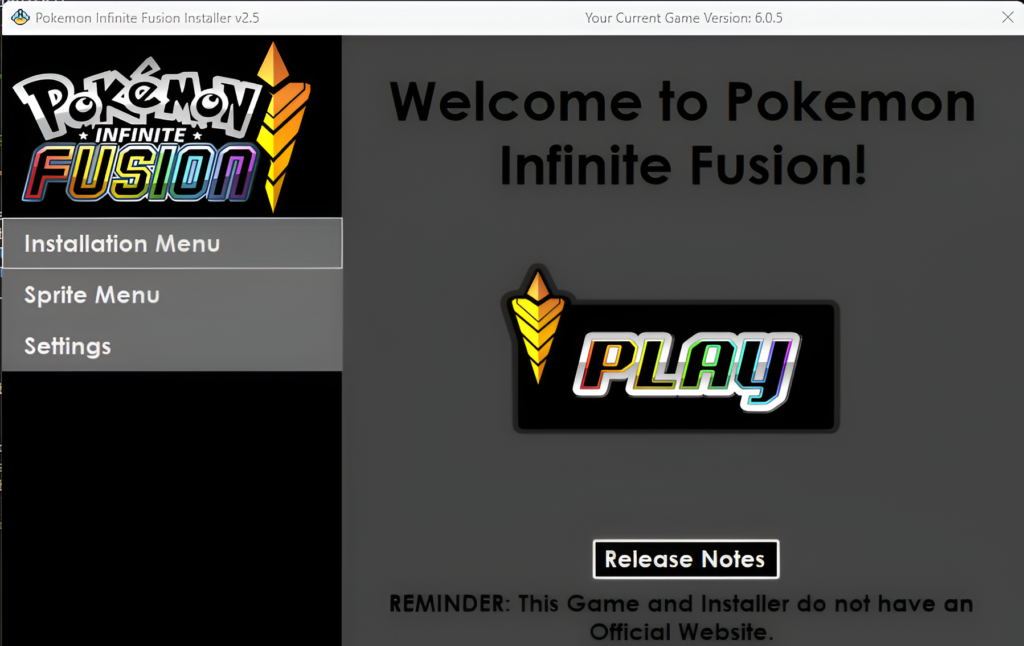
Disable Sprite Downloads
Disable Sprite downloads the same way you turned them off earlier. Go to the game settings, turn off “Download Sprites,” and restart to apply the changes. If starting a new game, select “NO” when prompted to download sprites. When you are using the Dynamic version of the game, it automatically fetches and downloads any required sprites directly from the game’s servers during gameplay. However, this can slow down your gaming experience, especially if your internet connection is unstable or if the game frequently needs to download new sprites. Therefore, make sure to turn off sprite downloads.

In Summary
Pokemon Infinite Fusion is a Windows fan-made game that offers endless fusion possibilities with preloaded sprites. Download the game, extract the files with WinRAR or any other extracting tool, and ensure your system has enough storage space for smooth gameplay. With up to 5GB of essential files and preloaded sprites, the game is ready to launch directly from your desktop. Customize sprite settings for better performance and start exploring unique Pokemon fusions.